- Moodboard
- Posts
- My guide to Claude Cowork 📖
My guide to Claude Cowork 📖
The results of my weeklong rabbit hole...


Hello everybody, welcome back to Moodboard 🌴
Today’s edition is my favorite in a while.
BEFORE WE DIVE IN:
The team behind Moodboard is building newsletters for businesses that want to build, grow, and monetize an owned email audience.

If you've been thinking about launching a newsletter for your business (or you have one that's not getting the attention it deserves), Tailwind is taking on new clients.
Our team will:
Design, build, and launch your weekly newsletter in Beehiiv
Write and send new editions every week
And help you grow that newsletter using the same set of strategies we’ve used to grow Moodboard
👉 If you want to build and grow a custom newsletter funnel for your business, reach out to the Tailwind team.
I'll be honest with you. Up until recently, I wasn't sold on Claude Cowork.
When it launched back in January, I played around with it, thought "cool," and went right back to Claude Chat.
This is mostly due to the fact that so much time had been spent building out my projects in the Claude web UI.
My newsletter project, my client projects, my meta-prompting workflows, everything was organized and compounding inside Claude Chat.
I talked about how cool the new Dispatch feature was last edition, but Cowork still didn't have projects, so there was really no reason for me to switch over… until…
Anthropic launched projects in Cowork, and I fell down a rabbit hole of experimentation, migrating my workflows, reorganizing my desktop, and discovering a setup that makes every task I run smarter than the last.
Today I'm walking you through exactly how I set it up, so you can skip the trial and error.
(ALSO: If you prefer to walk through this whole set-up on a live call with me next week, I’m hosting a free “Claude Cowork 101” workshop on Wednesday, 4/1. You can register for that here 🤝)
Alright, let's dive in 👇

Setting Up Your ‘Projects’ in Cowork
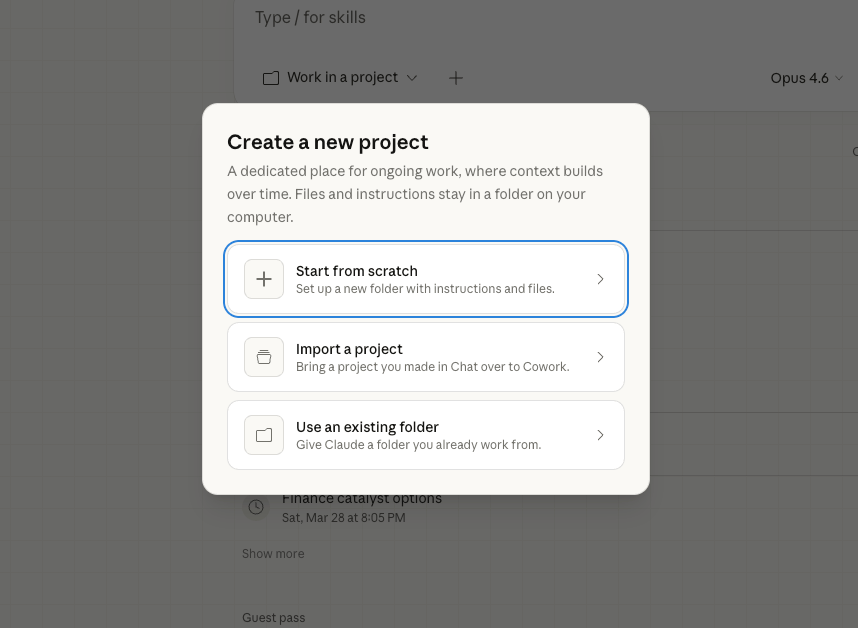
Okay, there are three ways to set up a Cowork project:
Start from scratch: Build a new folder on your desktop, write project instructions, and start populating it with files.
Use an existing folder: Point Cowork at a folder that already lives on your computer. That folder becomes the knowledge hub for that project.
Import from Claude Chat: This is the big one. All of the work you've done building out projects in Claude Chat (the instructions, the knowledge files, the compounded context + memory), you can now bring it into Cowork (via creating a folder directly on your computer) with one click.
That import feature is what sent me down this rabbit hole.
Months of context, transferred instantly and paired with Cowork's agentic features.

Get Organized
Now, as I quickly learned, to get the most out of Cowork you have to organize your files a bit.
This was genuinely (maybe embarrassingly) a mindset shift for me.
My desktop has traditionally been a mess. Everything lived in my Downloads folder with no real system.
Plus, I'd always relied on Claude Chat's project knowledge to hold everything. I'd upload files, let the cloud do the organizing, and leverage Claude’s memory for whenever I needed to find a one-off chat (“Hey Claude, remember when we talked about…”)
When using Cowork, your project folders live directly on your computer.
The files in those folders are your project knowledge. So the organizational work you do upfront compounds over time as Claude reads, references, and builds on those files in every task.
I spent a day or so experimenting with how to structure these folders most efficiently.
Here’s the tentative system I’ve landed on 👇

A Project Hierarchy
Before I get into the folder itself, a quick note on project instructions:
These don't live in your folder, they live inside the Cowork app in the project settings (similar to Claude Chat). You set them when you create the project.

Based on my experimentation, project instructions are less important in Cowork than they are in Claude Chat, especially if you're using skills files efficiently (more on that in a second).
In Cowork, I’ve been using project instructions mainly to describe the folder structure itself.
Stuff like where Claude should look for reference material, where it should save outputs, that kind of thing. Just enough so Claude can navigate the project without asking.
The real work happens in the project folder. Here's a simple structure I might use for a client project:

It can obviously get a lot more creative/complicated than this, but this is a pretty efficient, navigable structure for Cowork to use.
Let’s walk through each subfolder:
1. Skills
This is the most important folder in the project.
Skills files are markdown files that tell Claude exactly how to perform a specific task (we covered the basics in this edition of Moodboard).
For every repeatable type of work you do in a project, you create a dedicated skill file.
In my newsletter project, I have a skill file specifically for writing the Moodboard newsletter. It contains my preferred structure, voice notes, formatting rules, etc.
For your project, you might have separate skills for writing a weekly report, creating social content, or drafting email campaigns. Each skill is specific to one type of task.
Another thing that makes skills very useful: Claude can update them itself.
Unlike the in-app project instructions (which you have to edit manually), you can tell Claude to update a skills file based on your feedback.
So when I review a newsletter draft and say "fewer bullet points, more conversational paragraphs," Claude can write that preference directly into the skill file.
Next time it runs that task, the feedback is already baked in.
This is where compounding really happens. Every round of feedback makes the skill file better, which makes the next output better, which means less editing, which means even less feedback needed.
2. Outputs
This is where Claude saves its finished work. I might organize by type (reports, content, presentations) so everything is easy to find after the fact.
Nothing too crazy here. It just keeps things clean and prevents your project folder from turning into a mess of untitled documents.
3. Reference
This is everything Claude needs to know about the project that isn't a skill or an output. Brand voice guides, audience profiles, past campaign data, competitor analysis, industry research, everything.
Think of this as the Cowork’s project's knowledge hub. Claude can read these files when it runs tasks, so the richer your reference folder, the more informed the output.
The key insight across all three folders is that this structure isn't just for your benefit. Claude reads it.
When you launch a task in this project, Claude has access to everything in the folder.
The better organized it is, the better the output 🤝

Scheduled Tasks 🙌
Once your projects are organized, scheduled tasks are where Cowork’s agentic capabilities really shine.
You can set up recurring tasks that run automatically within any project.
Just access the “Scheduled” menu within the project (or just simply tell Claude that you want to schedule a recurring task).

You can provide detailed instructions on skills to utilize, artifacts to create, apps to access, etc.
This gets even more useful when you factor in all of the integrations that you can take advantage of.
Cowork connects to Notion, Google Drive, Slack, and other apps through either MCPs or Claude's official connectors.
This means your scheduled tasks aren't limited to local files, they can pull from and push to the tools you already use.
A few examples of scheduled tasks I’ve built already:
Automated social content from every newsletter: I have a scheduled task that connects to my Notion, pulls from the Moodboard Prompt Database, grabs the newsletter-to-LinkedIn prompt, and applies it to the latest edition of Moodboard on a rolling basis. Every time I publish a new edition, a LinkedIn post draft is waiting for me.
Side note: this is a wildly good use case for the Prompt Database. Once your prompts live in Notion, you can have Claude access them through Cowork at any time, on any schedule. The prompt library becomes an always-available toolkit that Cowork can pull from without you lifting a finger.
News/update curation: For one of our Tailwind clients, I have a scheduled task that curates relevant industry updates, turns them into formatted snippets, and sends the batch to my ops team via Slack so she can drop them into the latest newsletter draft. What used to be a manual research-and-handoff process now runs on autopilot.

How I'd Use This
In my dozens of hours of experimentation, I feel like I’ve only scratched the surface. And even still, Cowork is genuinely beginning to resemble the “second brain” I thought that Openclaw would become (with a lot less work/security risk).
Here are a few examples of you might leverage Cowork for your own work 👇
Freelancers and agency owners: One project per client. Project instructions cover the client relationship, skills files handle each recurring deliverable (weekly reports, content creation, analytics summaries). Scheduled tasks keep routine work on autopilot.
Newsletter creators: A dedicated newsletter project with your voice guide, past editions, and a skill file for your writing process. Each edition gets smarter as you refine the skill file with feedback.
Marketers: A project for each campaign or channel. Skills for ad copy, landing pages, email sequences. Context folder loaded with brand assets and audience data. Scheduled tasks for performance monitoring.

Getting Started
If you want to try this, here's the simplest path:
Pick one area of your work that involves repetitive tasks.
Create a Cowork project for it (importing from Claude Chat if you've already built one there).
Set up the folder structure with project instructions, a skills folder, and a context folder.
Create one skills file for your most common task.
Run it, review the output, and tell Claude to update the skill file with your feedback.
Start small, let it compound, join our live workshop next week, and build from there.
Try it out, and let me know how it goes!

Want more from the Moodboard team?
Get all of our prompts: The Moodboard Prompt Database is our team's personal collection of every prompt and workflow we use day-to-day. Organized, searchable, and updated weekly. One-time purchase, lifetime access.
Learn our whole system for yourself: Vibe Marketer OS is our 12-module training program that teaches you the AI-powered systems and workflows I use to run Moodboard and our agency. Everything from newsletters to landing pages to image generation and AI video. You get the full self-guided program, a community of vibe marketers + weekly office hours, and lifetime access to all future curriculum updates.
Let us build and grow your newsletter: Tailwind is our done-for-you newsletter agency. We handle the content, growth, and operations so you can focus on running your business.

![]() | Until next time, Ryan Carr ![]() Chief Vibe Officer @ Moodboard PS: Subscribe to our YouTube channel for weekly video walkthroughs of Moodboard workflows and more! |


